

kill9 is a desktop workspace where specialist agents plan, implement, verify, and review software work. This guide takes you through the smallest useful loop: install the app, attach one repository, connect one model, run a safe task, and inspect the result.
Time: Allow about ten minutes if you already have an AI provider account and a local codebase. Stop at any checkpoint that does not match what you see; the next step depends on it.
Before you start
Have these ready:
- macOS on Apple Silicon or Intel, or Linux x64
- A local codebase you understand well
- An account or API key for a supported AI provider
- Permission to let kill9 read that repository and run its project commands
Windows builds are not available yet. kill9 uses your provider credentials and your provider account for model usage.
1. Install kill9
The shortest route on macOS or Linux is the installer:
curl -fsSL https://kill9.ai/install | shIf you prefer to inspect scripts before running them, open https://kill9.ai/install first. You can also choose a platform download at kill9.ai/download.
The installer places:
- macOS:
kill9.appin/Applications - Linux:
kill9.AppImagein~/.local/bin
Launch the app using your application launcher, or run the command printed by the installer.
Checkpoint: The kill9 window opens and shows account or workspace setup. If the app does not open, use Install kill9 before continuing.
2. Sign in and attach a workspace
Sign in with email or GitHub. If your account belongs to more than one organization, choose the one that should own this project.
Create or select a project, then attach the local folder that contains your codebase. kill9 reads the repository structure and discovers the commands agents should use.
When kill9 offers to verify commands such as install, build, test, lint, typecheck, or end-to-end checks, review them before approval. These commands become the evidence agents use later; correct them now if they do not match the repository.
Checkpoint: The project shows an attached local folder, the workspace can read it, and the cortex workspace service reaches its ready state.
3. Connect a model provider
Open the provider step and connect at least one provider:
- Use Sign In when the provider supports OAuth.
- Use Add Key when the provider expects an API key.
- Choose a default model after the provider connects.
You cannot finish setup until a provider and default model are available. You can add providers or change the default later in Settings → Models.
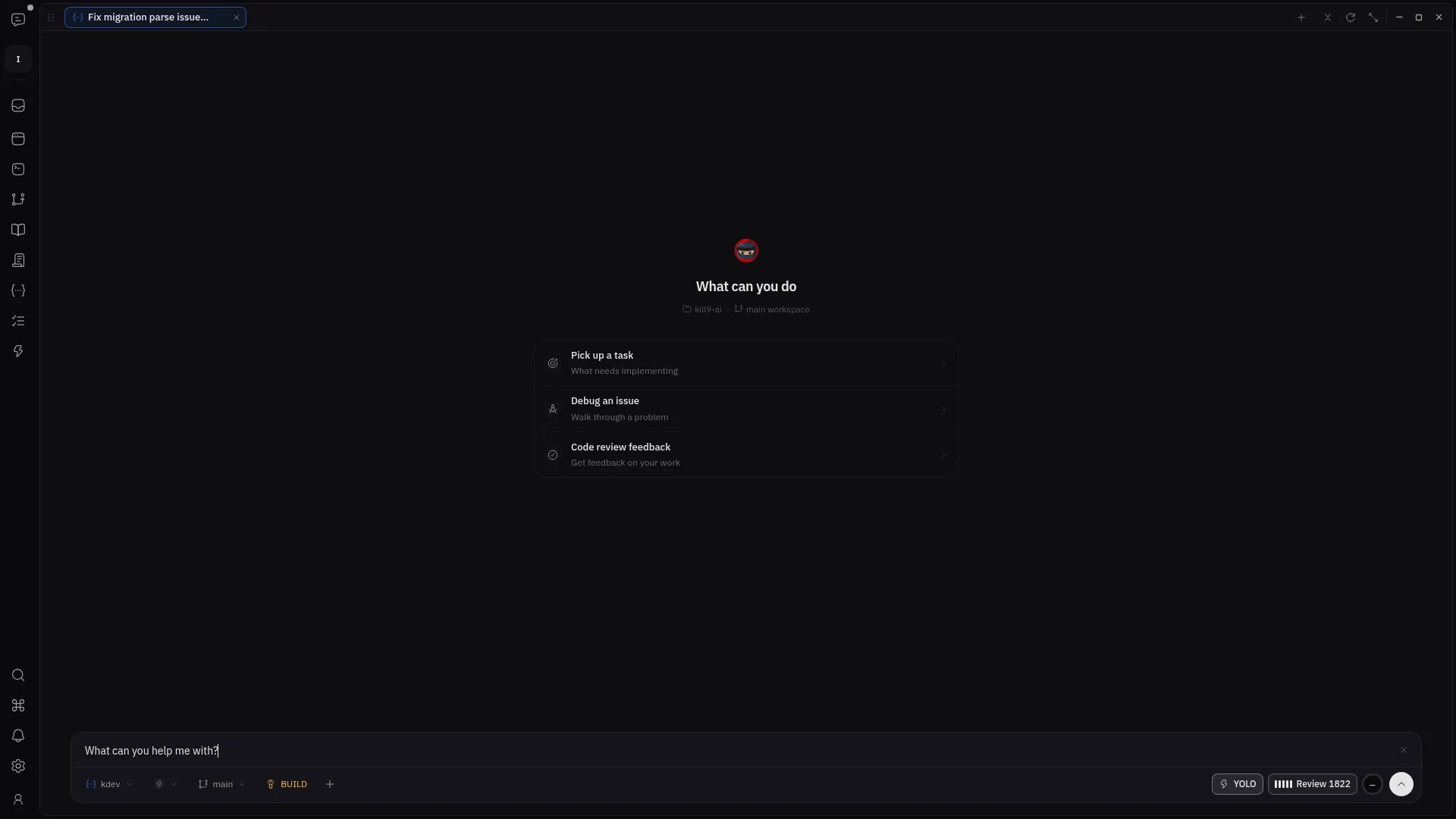
Checkpoint: The selected model appears in the composer and is available to a new session.
4. Confirm that kill9 understands the repo
Open a fresh Work session. Start read-only:
Explain this workspace. Name the main apps or packages, their entry points, the test commands, and anything you are uncertain about. Do not edit files.Compare the answer with the repository. Correct any wrong assumption before asking for a change.
A useful answer should identify:
- The main project areas and their responsibilities.
- The commands the repository actually uses.
- The likely file or module for a small task.
- Uncertainty instead of invented details.
Checkpoint: The explanation matches the repository well enough that you would trust the agent to locate one small change.
5. Run one narrow task
Choose a reversible task with an observable check. For example:
Add one focused test for the current behavior of the version helper. Run only that test. Show me the changed file and the command output before proposing anything else.Use a task that fits your repository; do not start with an authentication rewrite, dependency migration, or production incident.
While the agent works:
- Read permission requests before approving them.
- Answer clarification questions instead of letting the agent guess.
- Open the specialist session if you want to inspect its reasoning or tool output.
- Stop the run if the proposed scope grows beyond the task.
6. Review the result
Open the changed files and verification evidence. Confirm:
- Only files required by the task changed.
- The result matches the request, not a nearby easier problem.
- The focused check passed and its output is visible.
- The agent names any remaining uncertainty.
Approval moves the workflow forward; it is not a substitute for reading the evidence.
Success: You can explain what changed, why it changed, and which check proves the behavior. Your first useful kill9 loop is complete.
Common setup blockers
| What you see | What to check |
|---|---|
| No repository available | Attach the local folder to the current workspace and confirm kill9 can read it. |
| Cortex does not become ready | Reopen the workspace and confirm the attached folder still exists and is accessible. |
| No model in the composer | Connect a provider, validate its credential, and select a default model. |
| Agent names the wrong commands | Update the workspace verification commands before allowing code changes. |
| Workflow cannot advance | Ask which gate is blocked and which evidence is missing. |
For more detail, use Troubleshooting or ask khelp from a chat.